Max Headroom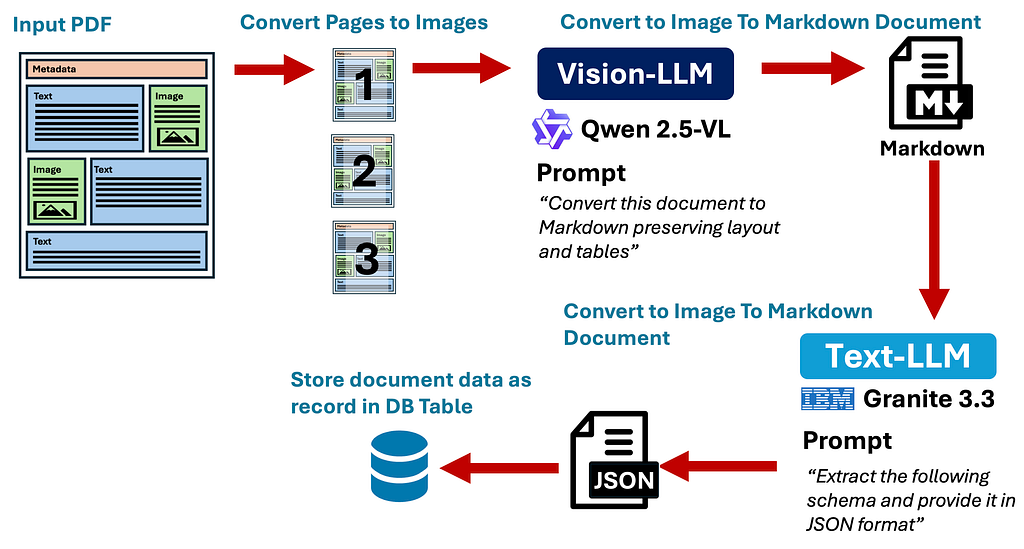
Lessons learned building a medical results fax processing system PoC, replacing OCR with a vision-LLM and Markdown conversion
Background
Surprisingly, most healthcare organizations still depend on legacy technology. Fax machines, pagers, and telephones remain in heavy use.
Many external lab results (pathology, radiology, genetic testing, etc.) still arrive via fax rather than through an API. Services like eFax can receive these faxes and deliver them to email inboxes or file shares, where staff manually review them and route them to the correct patient record in the EHR (Electronic Health Record) system.
I have recently been working on a proof of concept (PoC) for an automated intake pipeline to process these faxes and extract the data into a structured format. The output can be stored in a database and paired with a UI application where clinic staff can monitor and view incoming results.
This article covers what I learned about extracting information from PDFs during the project and describes the PoC as a potential stepping stone toward a more fully automated medical document intake system. This includes integrating the system with an AI assistant.
If you would rather skip the details of extracting text from PDFs and are only interested in the PoC system that was created, click here.
The Challenge
The first surprise was realizing that extracting information from electronic documents still is not a solved problem. OCR has been around for a long time, so I assumed I could drop in a solution that would work well enough. I was wrong.
After a few quick attempts to extract data from the medical results documents, I learned that they were not text-based PDFs where the text can be extracted programmatically. Although they arrived as PDFs, each file was essentially a wrapper around embedded images of scanned pages, so direct text extraction did not work. No problem, I thought. I would just use OCR to extract the information.
The first iteration of the PoC used OCR to extract text before converting it into structured data. It technically worked, but the accuracy was not good enough. It missed data elements, jumbled the text, and produced too many character recognition errors to be trusted.
The Solution
The breakthrough came from an unexpected pivot: removing OCR entirely.
Instead of OCR, we switched to a vision-capable LLM that can interpret each page and convert it into Markdown. This preserves layout and formatting, including tables, as an intermediate step before data extraction.
Removing OCR and adding the Markdown conversion step dramatically improved extraction accuracy. The tradeoff is higher compute requirements if you run it locally for data privacy, and higher costs if you run it in the cloud. For an accuracy-first workflow like medical document processing, that is an acceptable compromise.
In the next sections, I will share what I learned about PDFs and extracting data from them, along with an overview of the PoC system we built.
PDF Document Basics
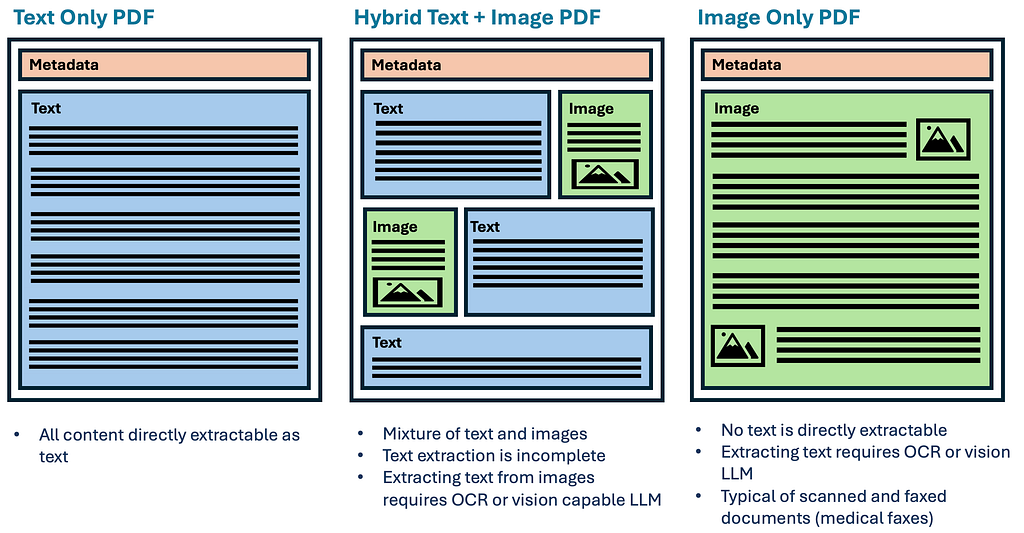
There are three basic types of PDFs that a document processing system needs to handle: text-only PDFs, where all content can be extracted directly; hybrid PDFs, where information is contained in a mix of text and images; and image-only PDFs, where all content is contained in images. The figure below shows these types and their extraction characteristics.
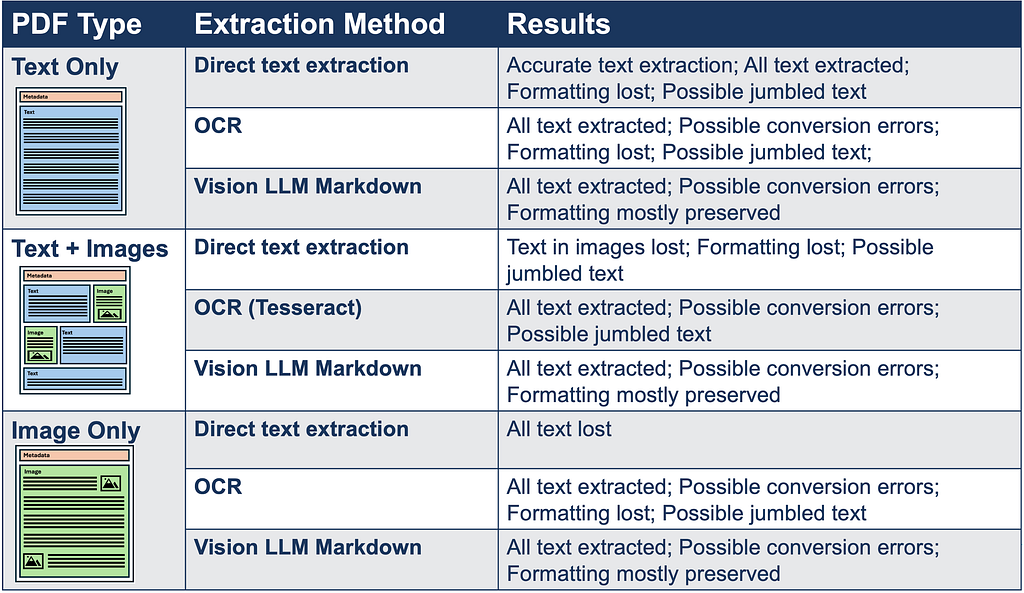
The following table shows the different text extraction methods and characteristics of each PDF type and extraction method:
Direct Text Extraction
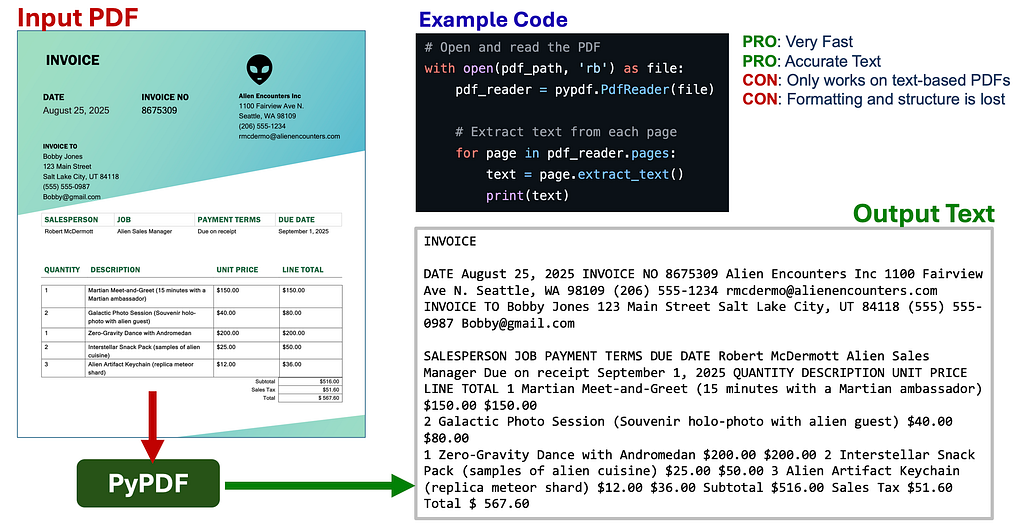
For simple, text-only PDFs, extracting the content is straightforward and there is little chance of errors because the text is copied directly. The downside is that this approach works only for text-only PDFs, and formatting such as layout and tables is lost. As a result, the output can become a blob of text, and content may be misordered when columns or tables are present. The example below shows direct text extraction using the PyPDF package in Python:
Full code for extracting text from PDFs using this method can be found below (I’m assuming you are using “uv” for your python environments):
"""
Extract text from a PDF and print to stdout.

Usage:
    uv run example_basic_text_extraction.py <pdf_file_path>

Dependencies:
    - pypdf (install with: uv pip install pypdf)
"""

import sys
from pathlib import Path
import pypdf


def main():
    if len(sys.argv) < 2:
        print("Usage: uv run example_basic_text_extraction.py <pdf_file_path>")
        sys.exit(1)

    pdf_path = Path(sys.argv[1])

    # Open and read the PDF
    with open(pdf_path, 'rb') as file:
        pdf_reader = pypdf.PdfReader(file)

        # Extract text from each page
        for page in pdf_reader.pages:
            text = page.extract_text()
            print(text)


if __name__ == "__main__":
    main()
OCR Extraction
The next approach we will examine is Optical Character Recognition (OCR). For hybrid PDFs (a mix of text and images) and image-only PDFs, OCR can be used to extract the text content. This approach shares some of the same limitations as direct text extraction. Formatting such as layout and tables is lost, and text can be misordered, but OCR also introduces character recognition errors, especially when images or scans are low quality. In this example, we will use the Tesseract and pdf2image Python packages.
Note: this requires the installation of “tesseract” and “poppler” utilities in your operating system in addition to the Python packages:
- MacOS: “brew install tesseract poppler”
- Linux (Ubuntu): “sudo apt-get install tesseract-ocr poppler-utils”
- Windows: Tesseract: Download from UB Mannheim; Poppler: Download from GitHub
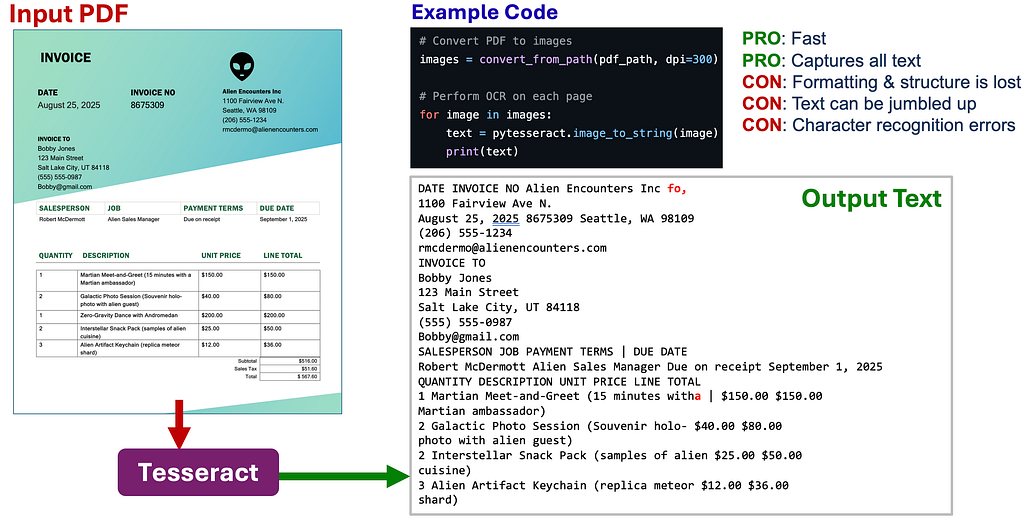
Full code for extracting text from PDFs using this method can be found below:
"""
Extract text from a PDF using OCR and print to stdout.

Usage:
    uv run example_ocr_extraction.py <pdf_file_path>

Dependencies:
    - pytesseract (install with: uv pip install pytesseract)
    - pdf2image (install with: uv pip install pdf2image)

System Requirements:
    - Tesseract OCR: "brew install tesseract" (macOS), "sudo apt-get install tesseract-ocr" (Ubuntu)
    - poppler-utils: "brew install poppler" (macOS), "sudo apt-get install poppler-utils" (Ubuntu)
"""

import sys
from pathlib import Path
import pytesseract
from pdf2image import convert_from_path


def main():
    if len(sys.argv) < 2:
        print("Usage: uv run example_ocr_extraction.py <pdf_file_path>")
        sys.exit(1)

    pdf_path = Path(sys.argv[1])

    # Convert PDF to images
    images = convert_from_path(pdf_path, dpi=300)

    # Perform OCR on each page
    for image in images:
        text = pytesseract.image_to_string(image)
        print(text)


if __name__ == "__main__":
    main()sdf
Vision LLM Markdown Conversion and Extraction
As I noted in the “The Challenge” and “The Solution” sections earlier in this document, many of the files I needed to process were poor-quality scans, and OCR was not accurate enough. It produced too many recognition errors and too much jumbled text to reliably extract the required data. I estimate I was able to correctly extract only about 80% of the required data.
I had worked with LLM-powered pipelines on several past projects, including an image classification pipeline using a vision-capable (multimodal) LLM (LLaVA). I decided to try the best open-source vision model available at the time. After some quick testing, it was much slower than OCR, but the accuracy was dramatically higher.
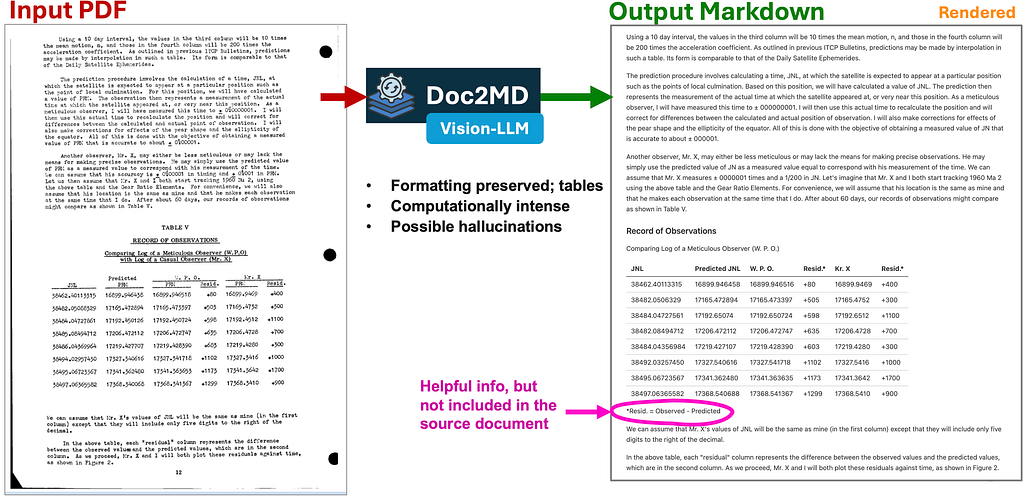
The next major breakthrough came when I added a Markdown conversion step before structured data extraction. Below is an example of the PDF-to-Markdown process using the standalone Doc2MD utility I created during this project. Most importantly for medical results documents, it preserves tables, which makes extracting the relevant data much easier.
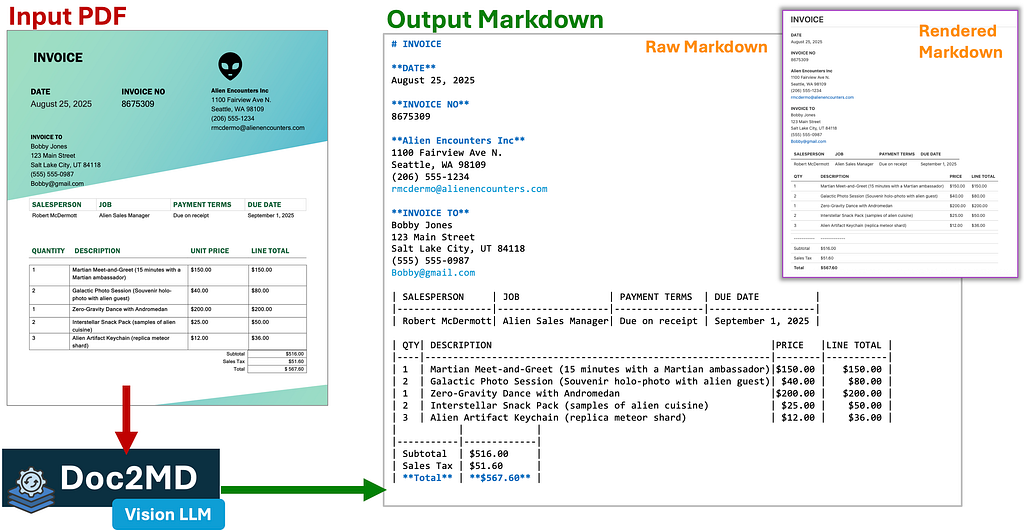
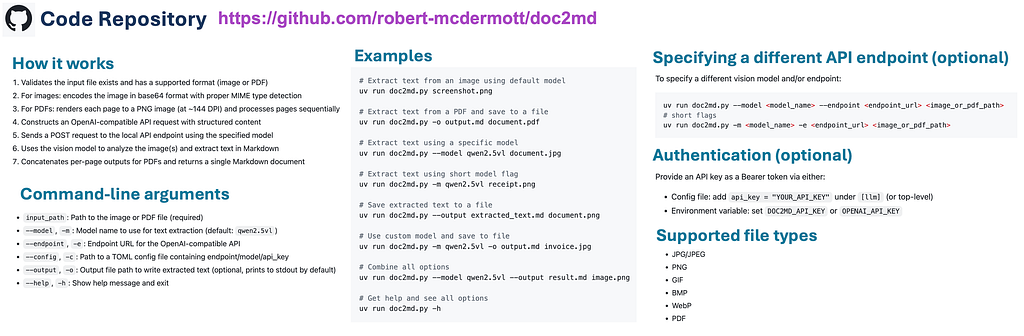
I’ve open sourced the vision-LLM powered PDF/Image to Markdown utility that I created as part of this project that can be found here: https://github.com/robert-mcdermott/doc2md
Comparing OCR against this Vision-LLM to Markdown Approach
OCR vs poor quality scanned, complex documents
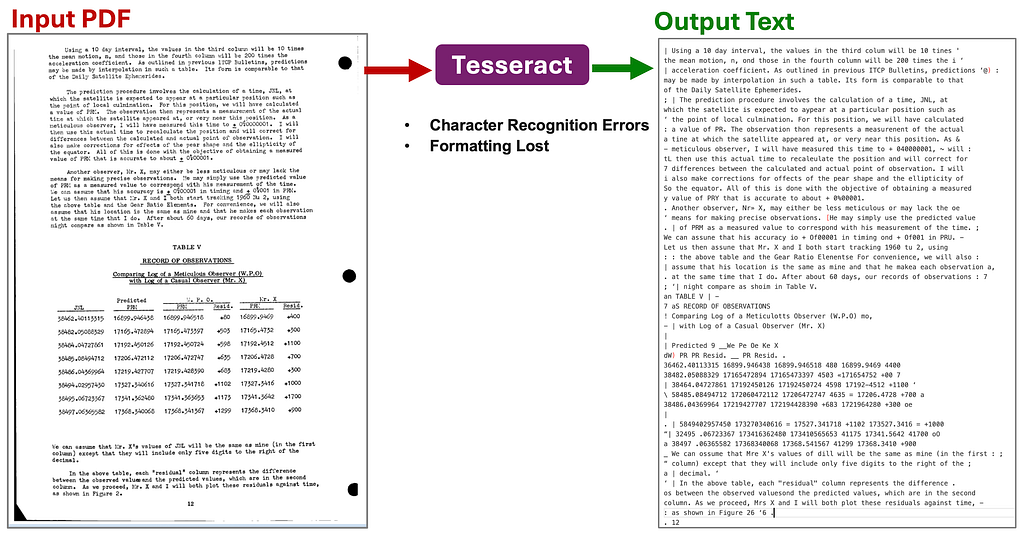
Example 1: With OCR there are many character recognition errors, some of the scanning artifacts like the edge of the page are incorrectly detected as characters. It would still be possible to extract some data out of this text, but there would be too many errors to trust.
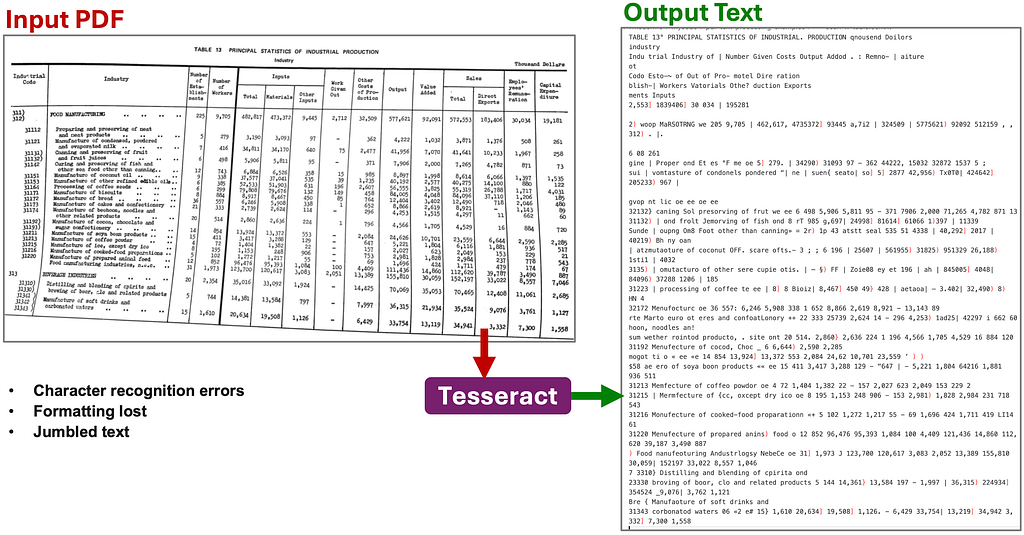
Example 2: This document is even more complex and there are too many errors and jumbled text in the output to be of any use:
Vision-LLM with Markdown Conversion vs poor quality scanned, complex documents
Example 1: Compared to the OCR version of this document, it did a really good job in the conversion. One thing that we have to be aware of is the LLM might go beyond extraction, and might add things to fill in gaps or attempt to “help”. In this example, it added the helpful information indicated below that didn’t exist in the original document:
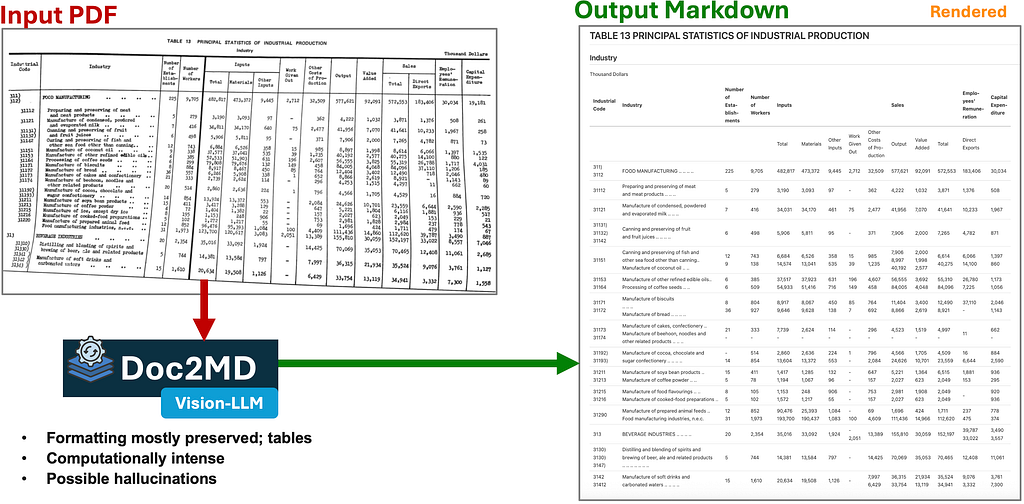
Example 2: This document was selected as a worse case example. There are no horizontal lines in table, some of the rows are nested, and it’s distorted. While the output is not perfect, it still did an impressive job in its attempt to recreate it in Markdown. Fortunately the medical results documents I need to process aren’t this messed up:
It’s clear that a vision-LLM, even a small open model running locally, is vastly superior to OCR for accurately extracting information from scanned documents.
Document to Markdown Conversion Tools
Because I had previous experience building LLM-powered data pipelines and working with vision-capable LLMs, I started building my own solution before taking time to see what already existed. After I created Doc2MD, I later found similar tools, and a few additional solutions were released afterward.
In this section, I will share information on Doc2MD and two other systems I found later: DeepSeek-OCR and Docling.
Doc2MD
Doc2MD is a standalone utility I created and open-sourced as part of this PoC project. It serves as a public example of a vision-LLM-powered document-to-Markdown approach:
DeepSeek-OCR
The “OCR” in DeepSeek-OCR’s name is a bit of a misnomer. It does not use a traditional OCR approach like Tesseract. Instead, it uses a vision-capable LLM with impressive extraction capabilities:
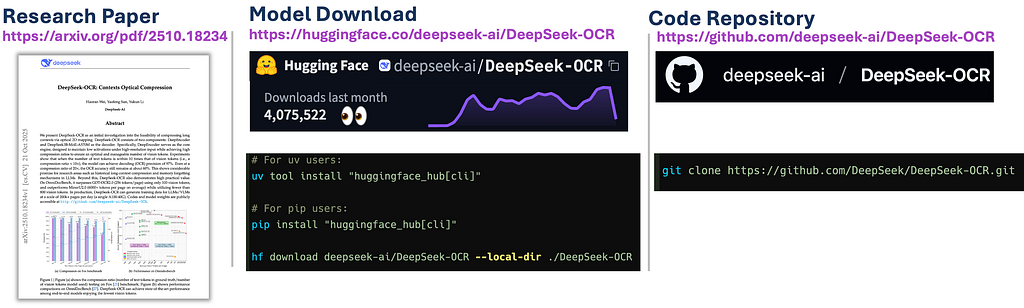
DeepSeek-OCR can have different output types depending on the system prompt. It can output:
- A high-level description of the document
- A Markdown version of the document’s content
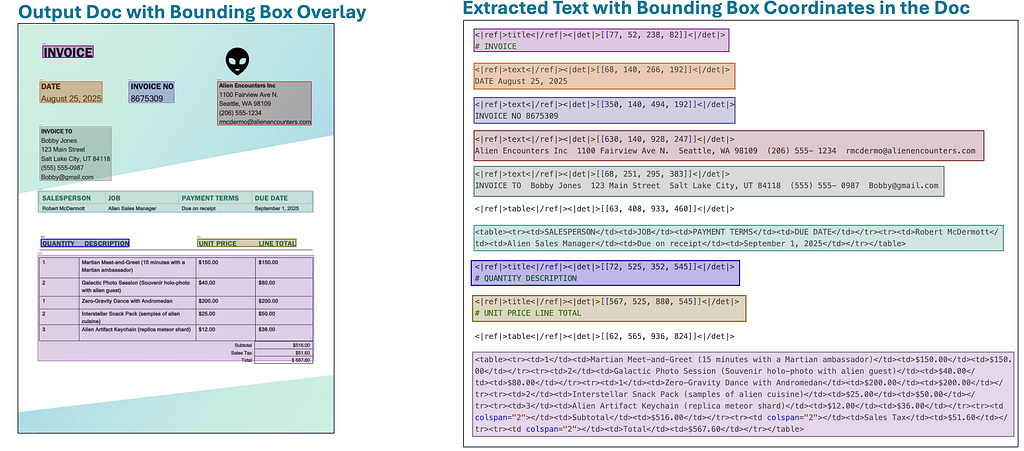
- Text from the document with coordinates where the text came from in the document
- An image of the original document with color coded bounding boxes over each block of detected/extracted text.
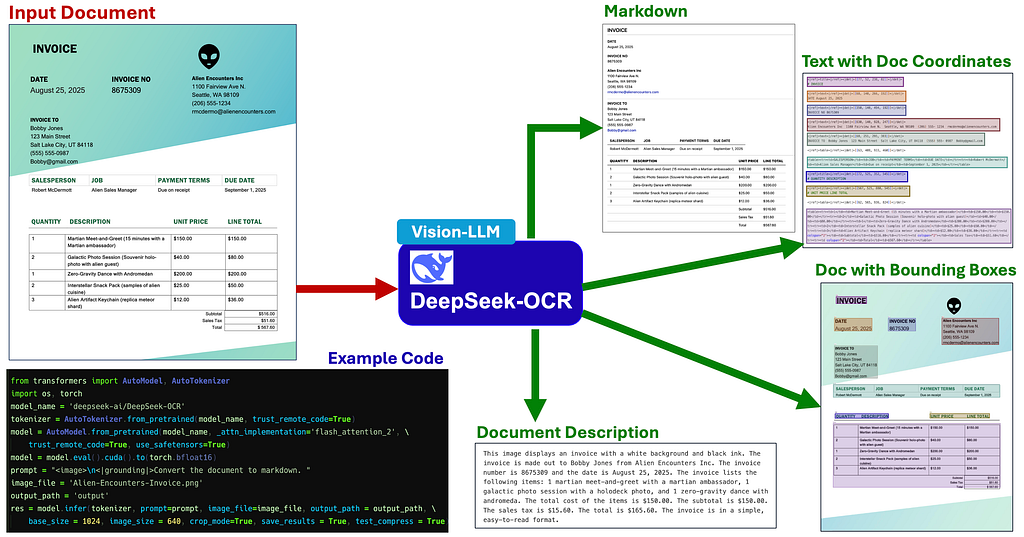
Here’s a close up of the unique bounding box overlay with coordinates output that DeepSeek-OCR can produce:
Docling
Docling is another powerful document text extraction utility with a wide range of options and functionality. I was able to get outputs similar to what I produced with DeepSeek-OCR. Using Docling, I was able to generate the following output formats:
- Doctags with coordinates
- HTML
- Markdown
DeepSeek-OCR is primarily a model, while Docling is a full-featured utility with a wide range of functionality. If I had known about Docling earlier, I might not have created Doc2MD and instead might have used Docling as part of our medical results pipeline PoC:

Medical Results Fax Document Processing PoC
The reason I started down this path and learned everything I have covered in the first half of this article was to build an external medical results fax processing pipeline, which I will cover in the rest of the article. As noted earlier, this pipeline initially used OCR to extract information from incoming faxes, but it was not accurate enough.
Note: all of the patient information (PHI) shown in the examples below are fake, this article contains no sensitive information.
High-Level Concept
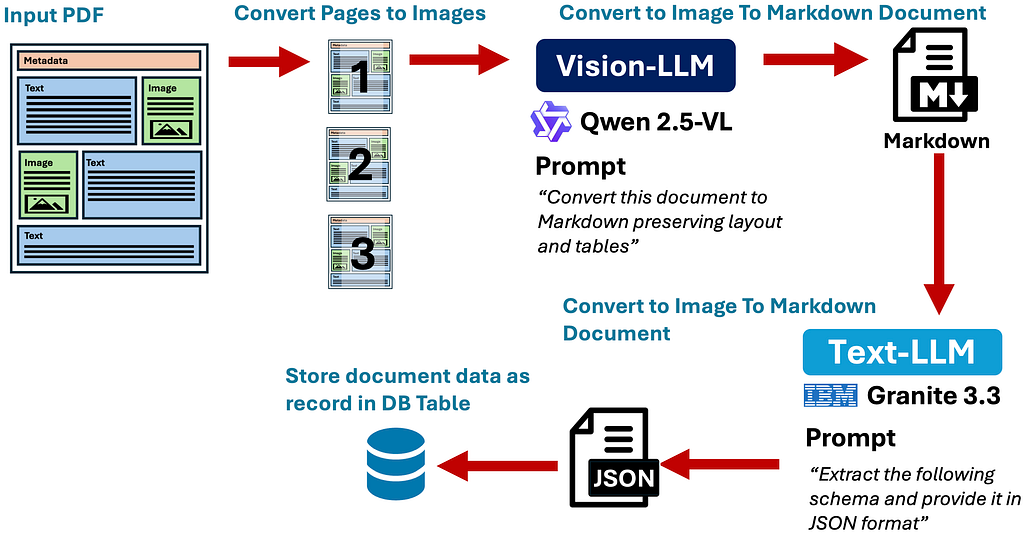
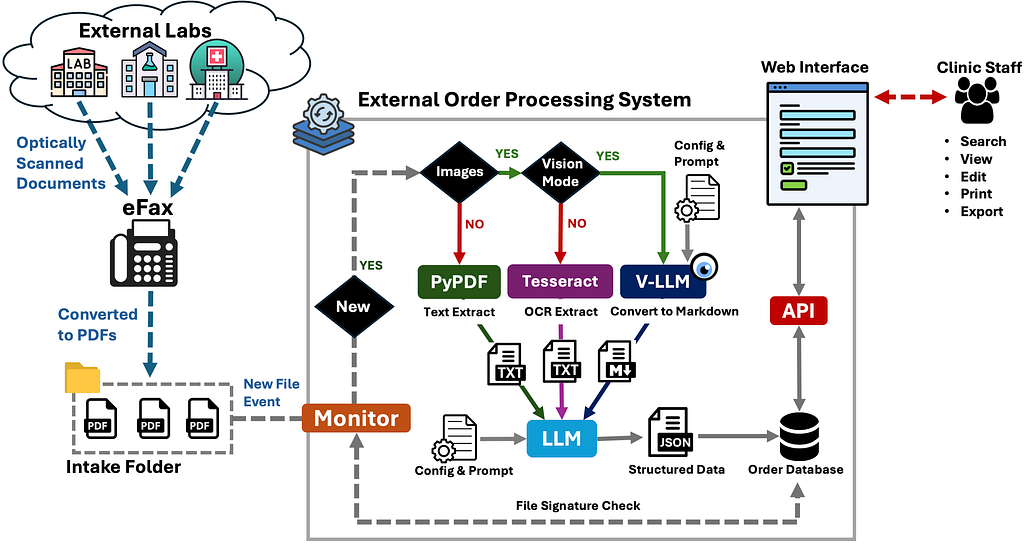
The image below shows the high-level concept for the vision-LLM-powered pipeline. In short, the document is converted into a stack of images (one image per page). Those images are then passed to a vision-capable LLM, which converts the document into Markdown. The Markdown is then fed into a text-only LLM with task-specific extraction instructions, which returns a JSON document that is stored in a database:
Data Schema
After working with subject matter experts to define what data should be captured from external medical results documents, we created the following schema for the data extraction phase of the pipeline:
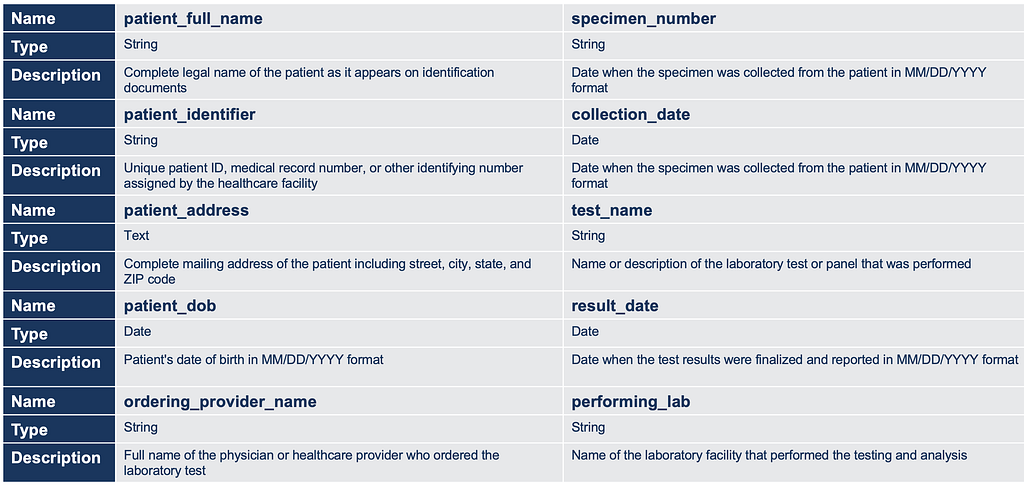
Diagram of the External medical results processing system PoC
Below is a high-level diagram of the PoC system built to process external medical results documents. The system’s direct text extraction and OCR extraction capabilities were implemented first and can still be used if needed, but vision-LLM extraction is configured as the default method:
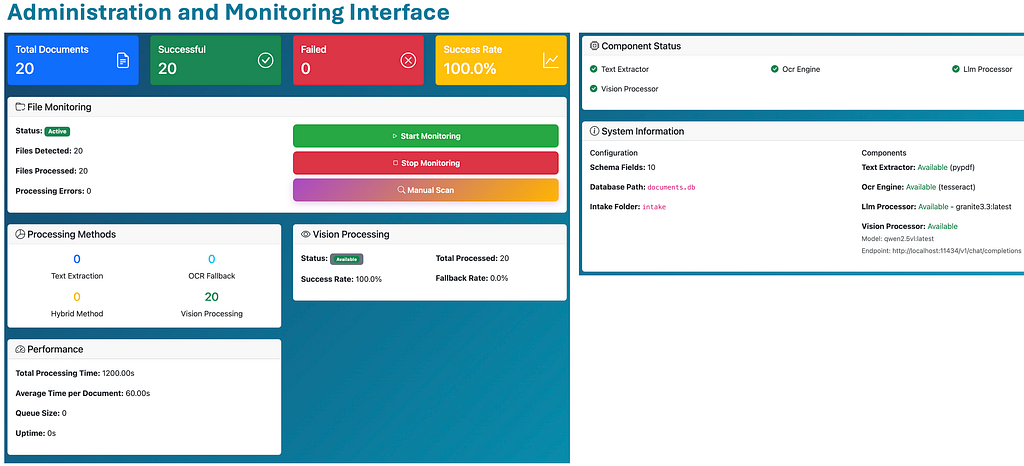
Administration and Monitoring Interface
The PoC system includes a basic admin UI that can be used to monitor metrics, health, and configuration, as well as controls to start, stop, or manually trigger a scan of the document ingestion directory:
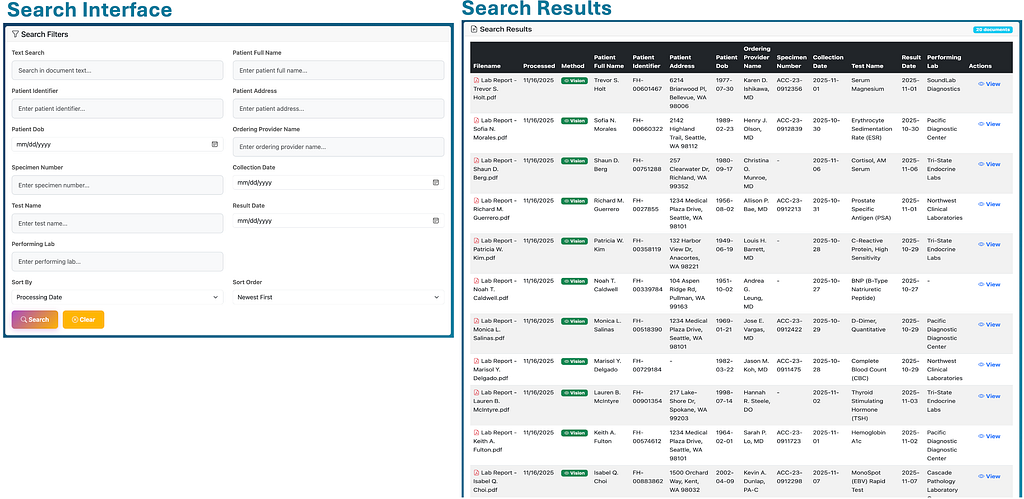
Search Interface and Results
The system includes a search interface where users can perform full-text searches across the entire document text or search specific fields. Matching records are shown in a table:
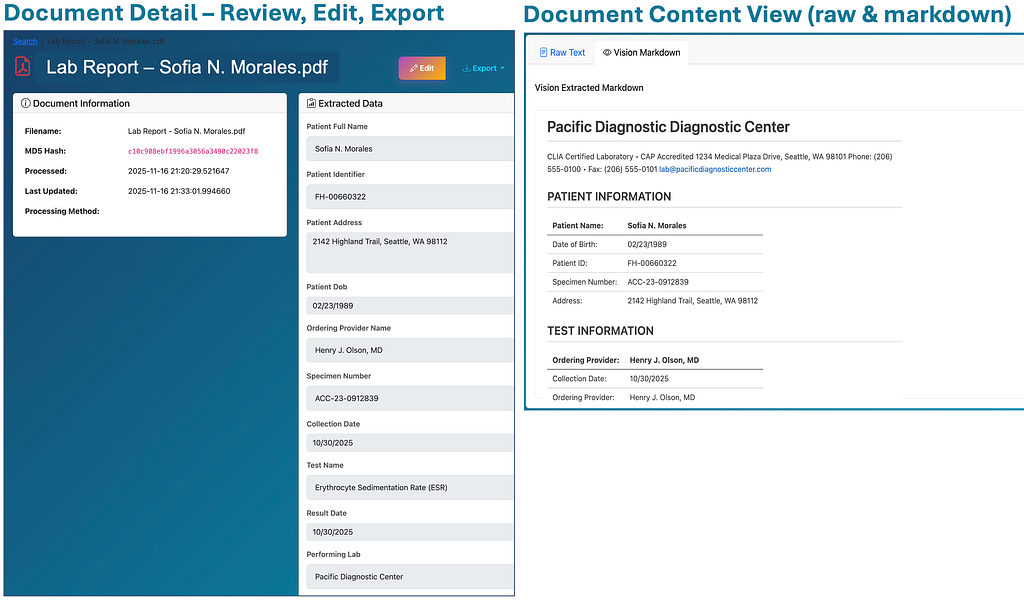
Document Detail, Review, Edit, Export and View
When a user clicks the “View” action for a record in the search results, they are taken to the document details page. There, they can review the extracted data, make edits if needed, export the data, and view the document:
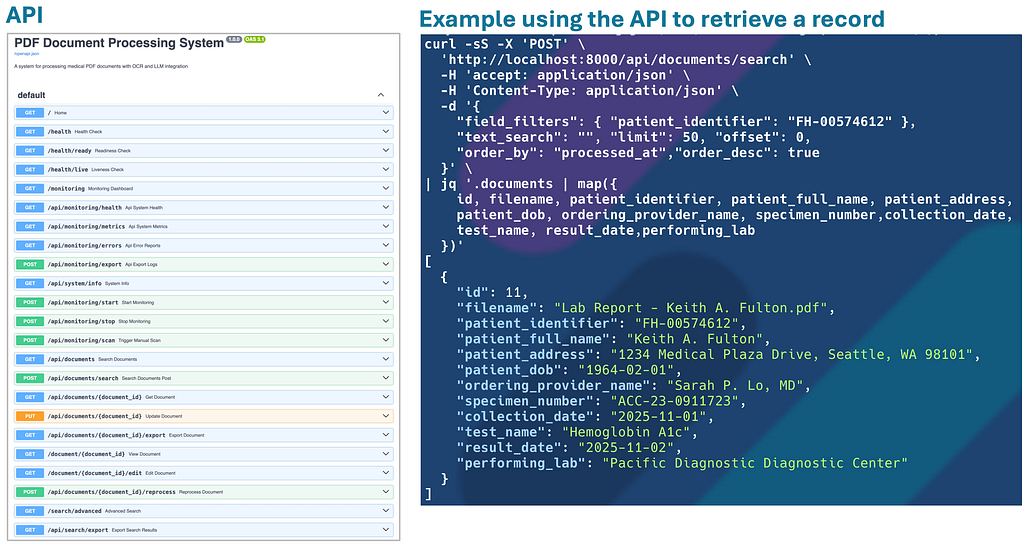
API
The system exposes an API that can be used to monitor, control, search, and retrieve documents. This API also enables integration with other systems:
AI Medical Results Assistant
Using the API shown above, we built an AI assistant that allows users to ask questions about documents, patient-specific results, or anything else the system can answer. The assistant uses the API to retrieve the relevant information and respond to the user.
An MCP (Model Context Protocol) server can also use the same API to provide an AI agent with a clean interface to the document system. The diagram below shows how the IOERD Assistant interfaces with the document system.
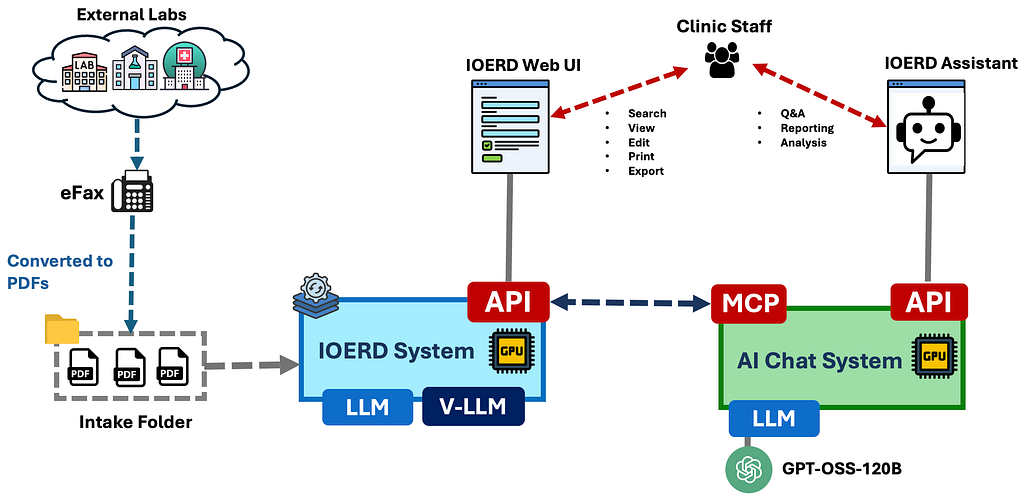
To keep everything open-source and open-weights, we used OpenAI’s open-weight model, GPT-OSS-120B, for the AI assistant. This allows the entire system to run on-premises, preventing sensitive data from leaving the campus network.
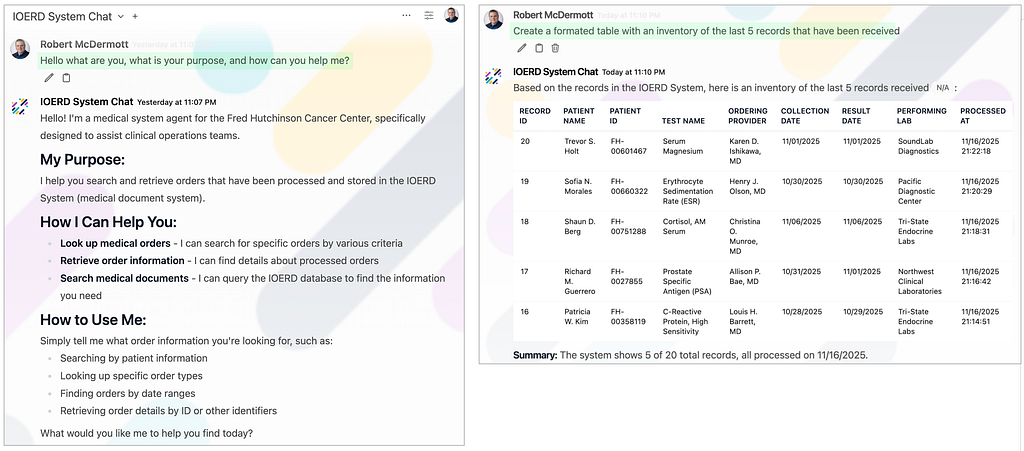
AI Assistant Examples
- The example on the left (image below), shows the agent telling the user what it is, what its purpose is and how it can help them
- The example on the right (image below), shows the assistant fetching and displaying the last 5 records that the system as received:
- The example on the left (image below), shows the assistant finding a results document based on the specimen/sample number.
- The example on the right (image below), shows the assistant finding the results for a specific patient:

Conclusion
OCR is still useful for certain use cases, but for extracting information from complex documents, especially scanned documents of less than optimal quality, it performs far worse than newer vision-LLM-based approaches. In practice, LLMs also handle Markdown more reliably than a messy stream of extracted words, so converting a document to Markdown before running any extraction step can be a game changer.
The main downside of the vision-LLM approach versus OCR is cost and performance. It is more computationally intensive and typically slower when run on local GPUs, and it can be more expensive when run on rented GPUs (for example, AWS EC2) or when billed per token (for example, OpenAI, Anthropic, or AWS Bedrock).
llm, data-pipeline, electronic-medical-record, ai, document-processing
Authors

[crypto-donation-box type=”tabular” show-coin=”all”]